6
Unit B · Telling a computer what to do
Your first blocks
What we are making: a cat that moves across the screen and says something, because you told it to.
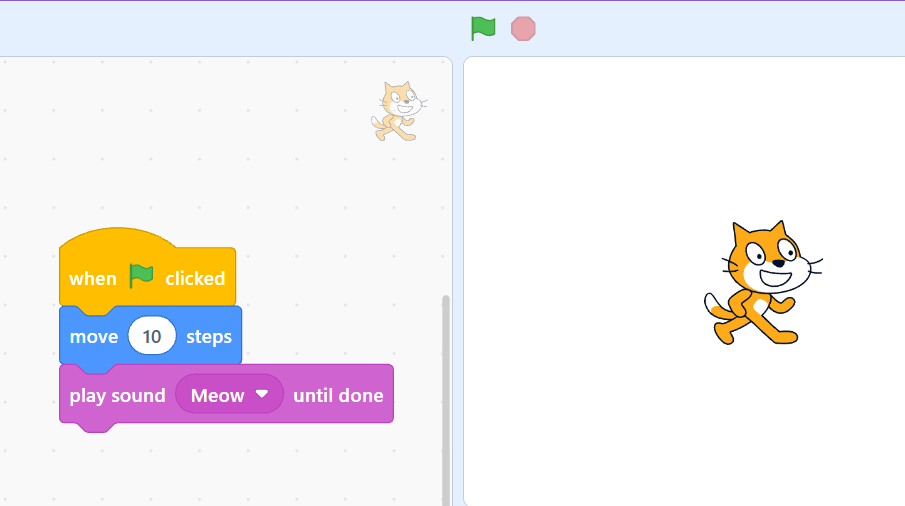
Screenshot: the Scratch or mBlock window with a small script built
The idea
Last session you wrote instructions in English and a person followed them. Now you will write them as coloured blocks and a computer will follow them. Same idea, and the computer is far more literal than your teacher was.
Blocks snap together like the pieces of a jigsaw that only fit one way. That is on purpose: you cannot write a block program that is spelled wrong.
New words
SpriteA character on the screen. The cat is a sprite.
StageThe white area the sprite moves on.
ScriptA stack of blocks joined together. Your program.
EventSomething that starts a script running — like clicking the green flag.
Do it — find your way round
- Open the program your teacher points you to.
- Find the block palette on the left. The blocks are sorted by colour into groups.
- Find the script area in the middle. This is where you build.
- Find the stage on the right, with the cat on it.
- Click the green flag above the stage. Nothing happens yet. Correct — you have not written anything.
📷
images/l1-s6-window-tour.png
Screenshot: the whole window with the block palette, script area and stage each circled and named
Do it — your first script
Drag these four blocks into the script area and snap them together, top to bottom.
Your first program
when green flag clicked
say Hello! for 2 seconds
move 100 steps
say I moved. for 2 seconds
📷
images/l1-s6-script-first.png
Screenshot: the four blocks snapped together in the script area — copy it exactly
- The yellow block at the top is an event. It says when to start. Every script needs one.
- The blue blocks are actions. They happen in order, top to bottom.
- The white ovals are boxes you can type into. Change 100 to 50 and watch what changes.
- Click the green flag. Watch.
- Change 100 to 10. Run it again. What is different?
- Change it to 300. Run it. Where does the cat end up, and why does it stop there?
- Change the words in the say block to your own name.
💡 Tip
The cat stops at the edge because the stage has edges. It is not a bug. Nothing you write can push a sprite off the screen entirely — the program keeps a sliver visible so you can drag it back.
Try it — make it yours
- Add a wait 1 seconds block between two of the actions. What changes?
- Add turn 90 degrees then another move. Where does it go?
- Find change colour effect in the purple group. Put it in and run it five times.
- Use the buttons under the stage to change the cat to a different character.
Save it properly
Unit A, Session 2. Same rules, and this time it matters because you will open this again.
- File → Save to your computer.
- Go to Documents → Robotics, the folder you made.
- Name it session6-first-script.
- Close everything, then open it again from the file manager to prove it worked.
📷
images/l1-s6-save-dialog.png
Screenshot: File → Save to your computer, with the Robotics folder open and the filename typed
| What you see | Why | What to do |
|---|---|---|
| Green flag does nothing | No event block at the top. | Every script needs a yellow 'when' block first. |
| Blocks will not snap together | You are dropping them too far apart. | Drag until a white line appears, then let go. |
| The cat is stuck at the edge | It has moved as far as it can. | Drag it back to the middle with the mouse, or add 'go to x:0 y:0'. |
| It runs too fast to see | Computers are fast. | Add 'wait 1 seconds' blocks between the actions. |
What you learned
- A script is a stack of blocks that runs top to bottom.
- Every script starts with an event block.
- The white ovals are values you can change.
- Computers run too fast to watch unless you make them wait.
Challenge optional — only if you finish early
- Make your sprite draw a square using only move and turn blocks.
- Then a triangle. The angle is not 90.